
They say a picture is worth a thousand words. In the case of digital photos, that’s especially true, because image files can contain far more than just the photo itself. You can embed all kinds of useful metadata – title, date, place, keyword tags and even facial-recognition data – which can then be accessed in other apps, including your online tree.
Managing this information – never mind your photos – is the tricky part. But thanks to the brilliant (and completely free) tool digiKam, which runs on Windows, macOS and Linux, you can bring all your photos together to view, edit and organise as you see fit. Start by visiting the website and clicking ‘Download’ to save the installer to your computer.
After installing, a welcome wizard will run. Click ‘Next’ at the first screen, then select the folder inside which all your photos reside. Click ‘Next’, tick ‘Enable WAL mode…’ for stability purposes, then click ‘Next’ again. Ignore the next step by clicking ‘Next’, then select ‘Add information to files’ to record your metadata in the files themselves, allowing them to be read in other programs too.
After downloading the required extra files, close and restart digiKam. You’re now ready to start cataloguing your photos.
1. Take your first steps
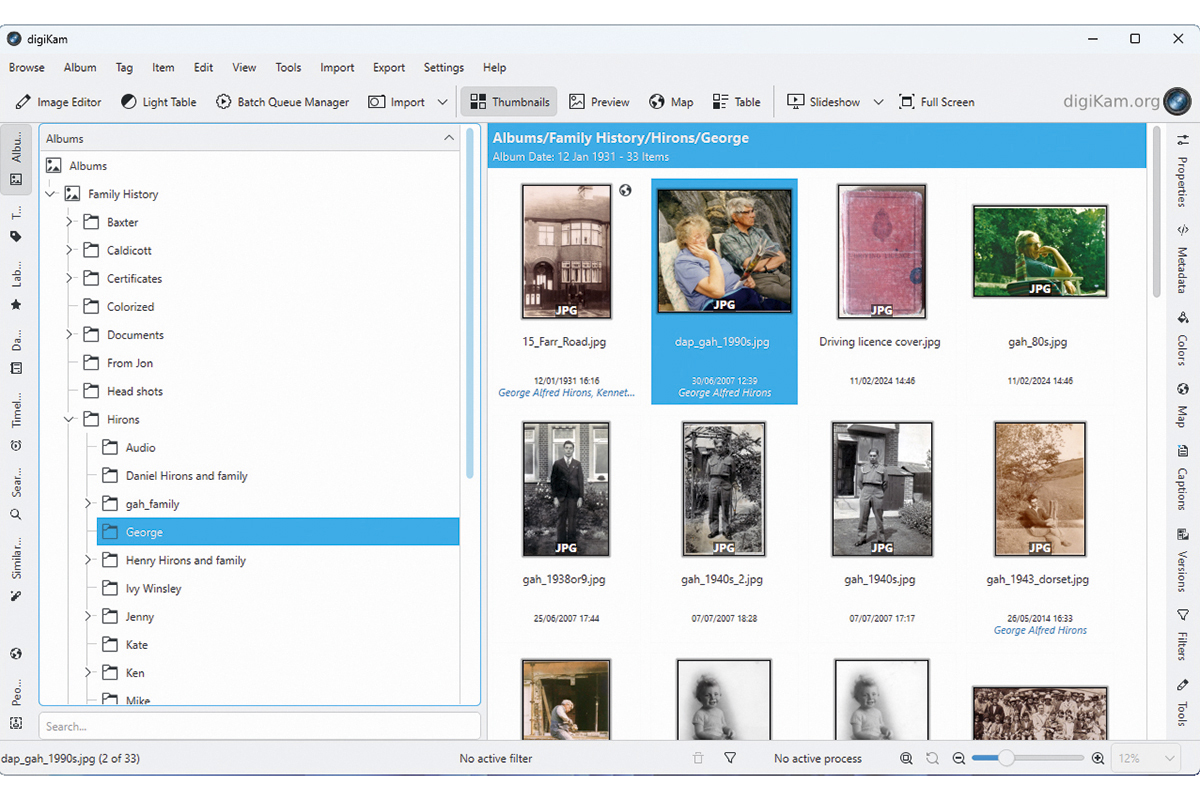
When you open digiKam for the first time after setting it up, you’ll see a three-paned window with tabs running vertically on the left and right. Let’s start with the left-hand pane, which is used for navigation. Click ‘Albums’, which displays your photos in a folder-like structure.
2. Organise your albums
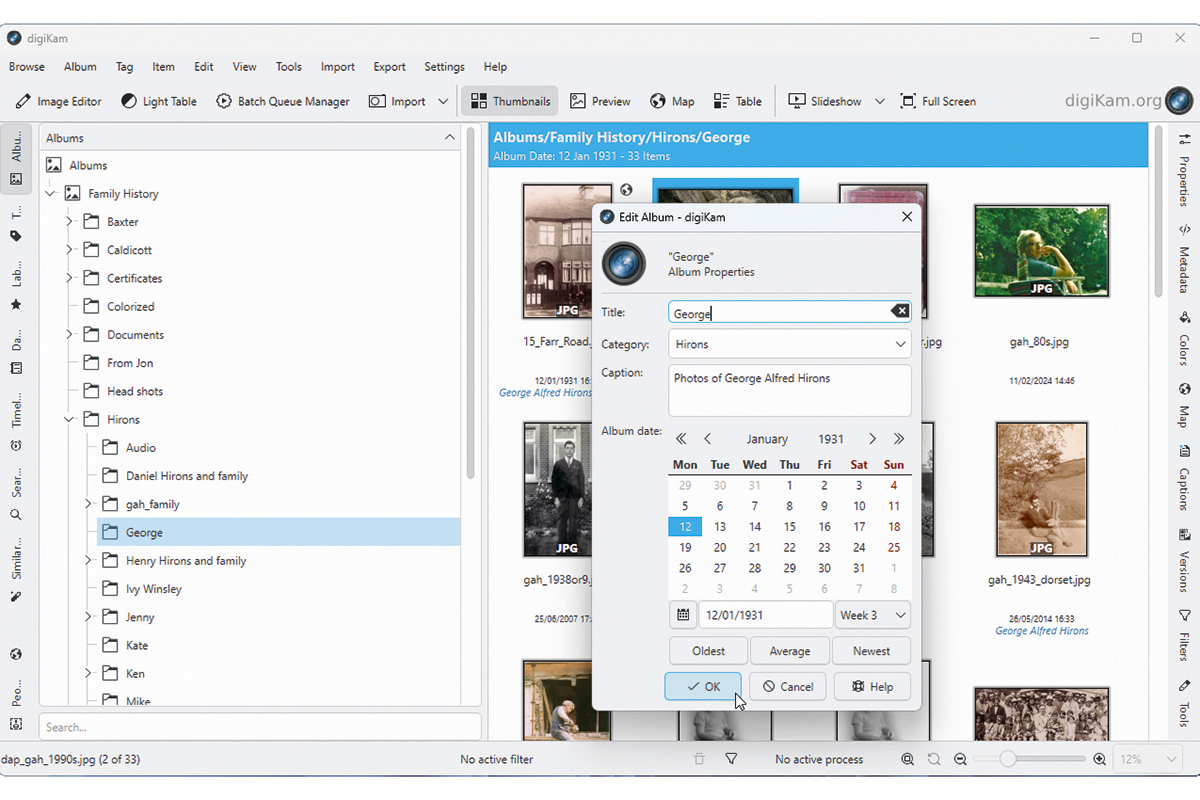
By default, Albums mirrors your Pictures folder’s own folder structure, so there’s no need to create new folders. Instead, you can add extra properties – a caption, date or category for example – by right-clicking an album title in the left-hand pane and choosing ‘Properties’.
3. View your photos
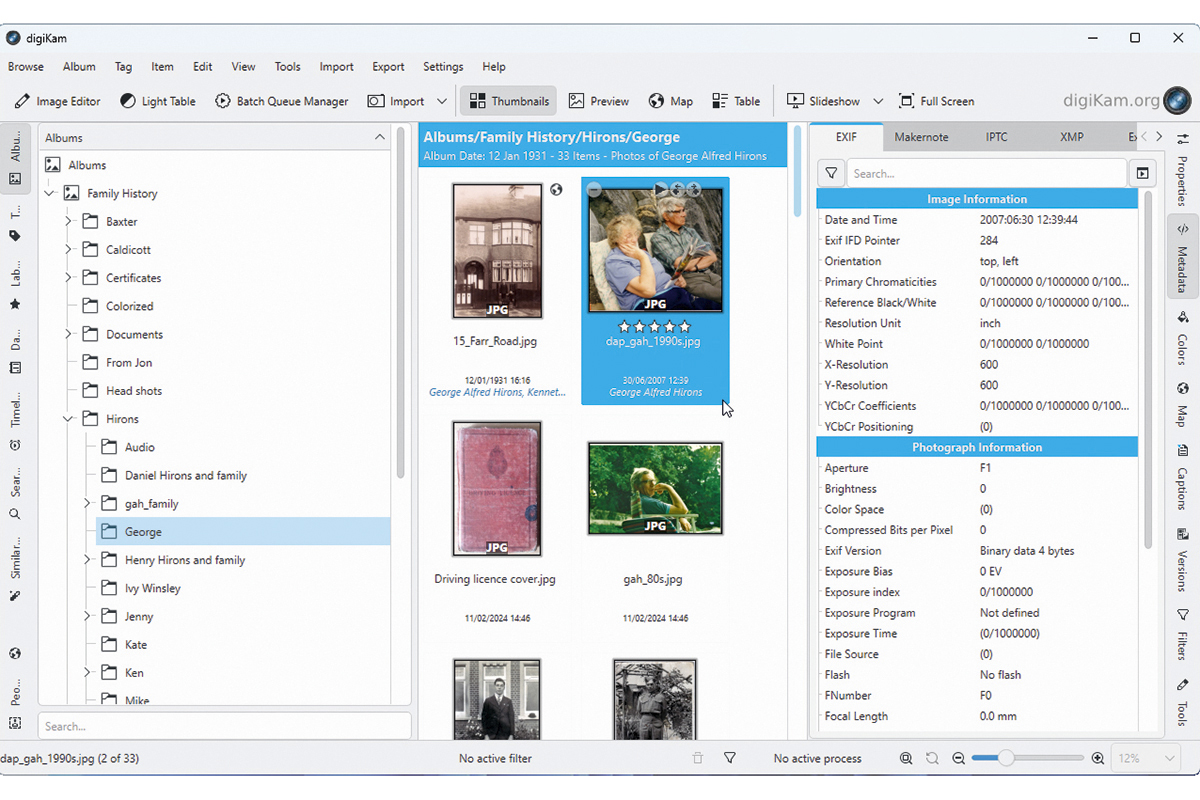
When selected, the contents of an album/folder are displayed in the middle pane. You’ll see thumbnails of each photo, plus any tags or dates you may have previously assigned in other software. The selected photo’s properties are shown in the right-hand pane under the ‘Metadata’ tab.
4. Add descriptive detail
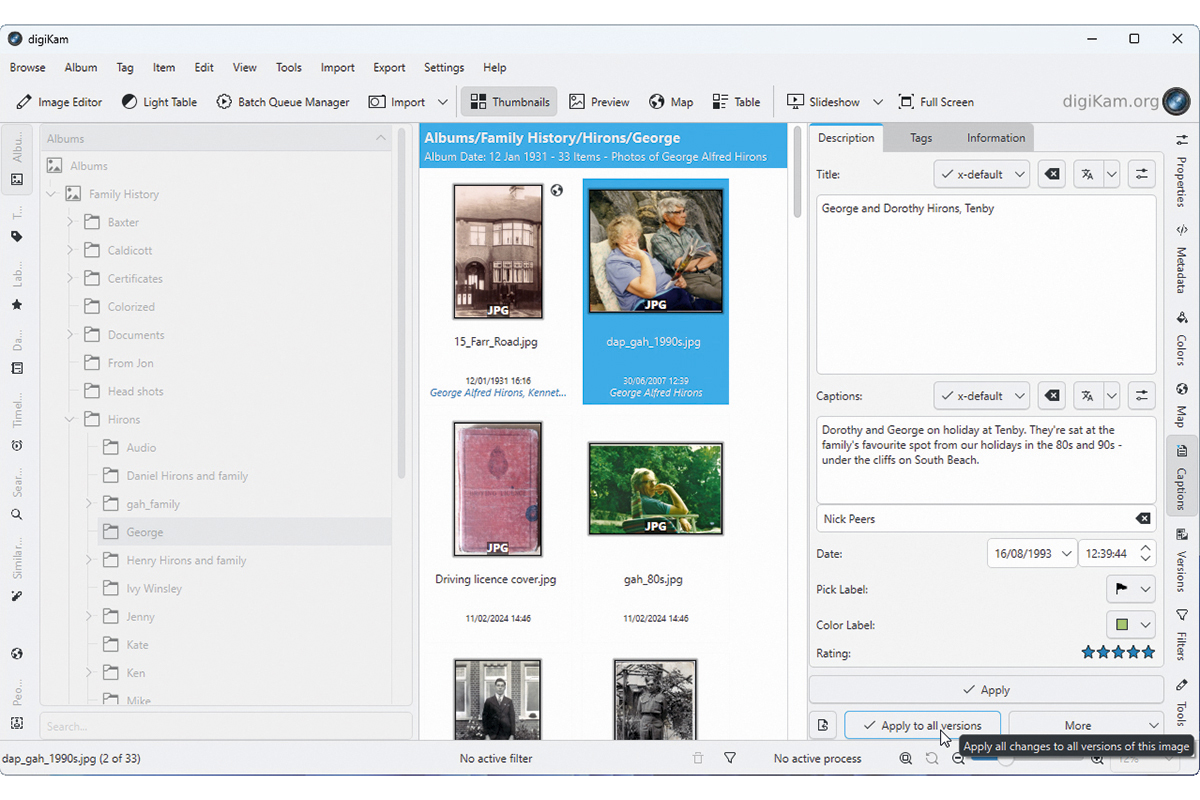
Select ‘Captions’ from the right-hand tab bar to give the photo a title and caption, plus change its date to more closely reflect the date of the original photo if necessary. Beneath this are options to assign colour labels to your images based on your own criteria (eg red for ‘Unidentified’).
5. Add keyword tags
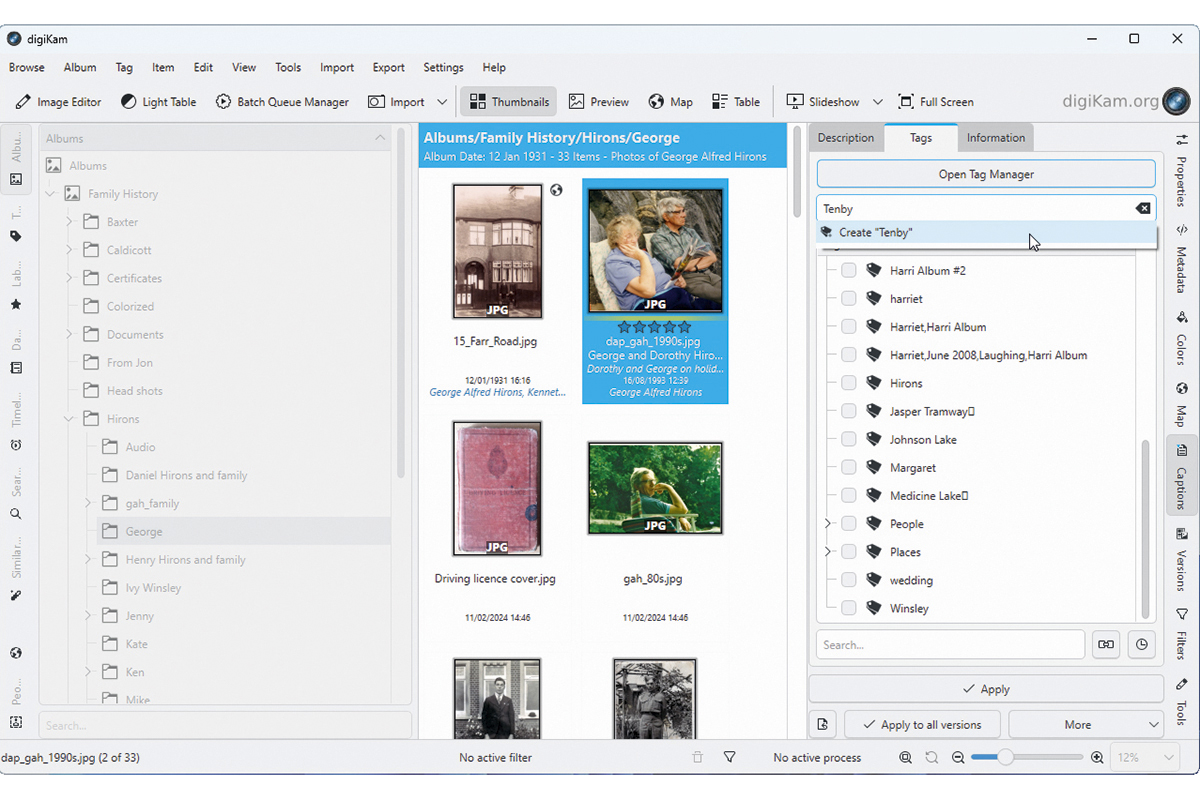
You can also tag your photos with descriptive keywords – for example, with a date, place or event type (such as ‘World War I’). Switch to the ‘Tags’ tab at the top of the ‘Captions’ pane where you can create new ones and select previously used tags (including those created in other software).
6. Perform facial recognition
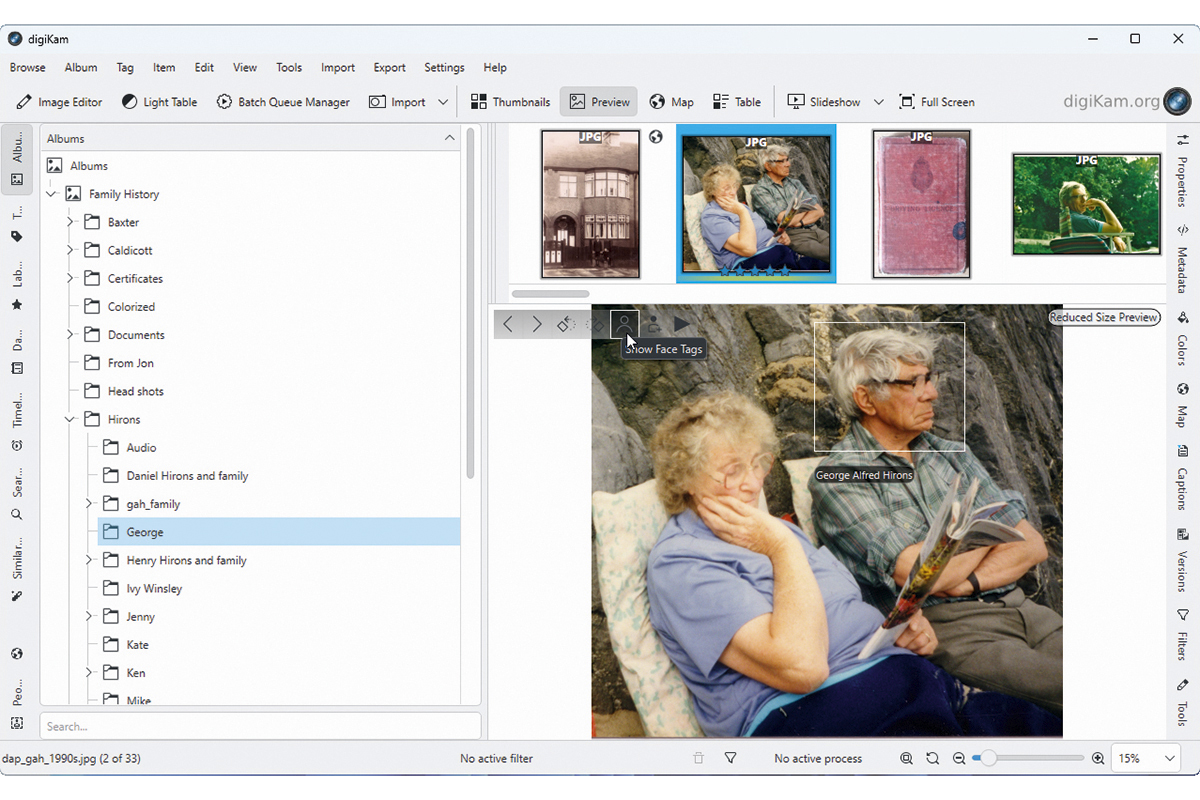
You can run facial recognition on individual photos or entire albums. Double-click the photo to bring up a larger thumbnail, with a series of buttons across the top. Previously tagged photos from programs like Google Photos should retain these – click the ‘Show Face Tag’ button to view any current tags.
7. Identify a face manually
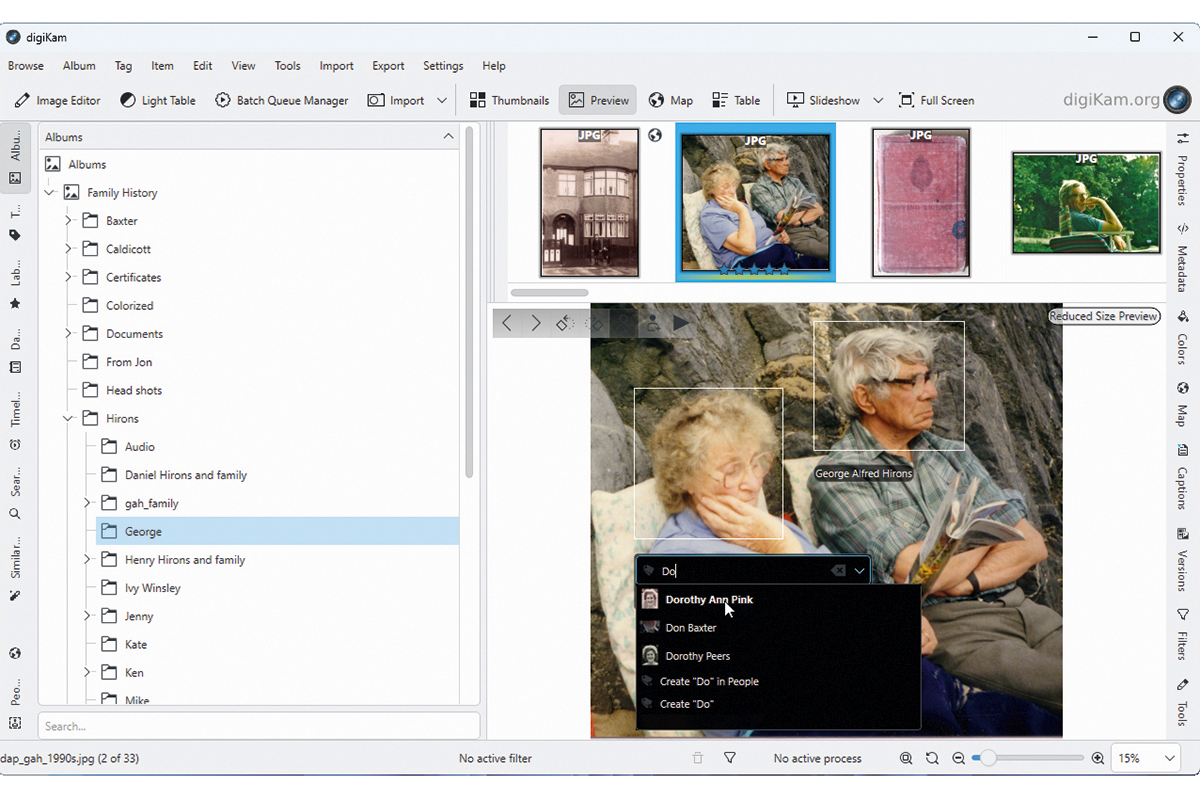
If a face hasn’t been identified, click the ‘Add A Face Tag’ button. Draw a square around the person’s head and then enter their name – previously identified names will pop up, allowing you to save time by clicking one, or you can simply type the name and click ‘Confirm’ to create a new tag.
8. Add geotags
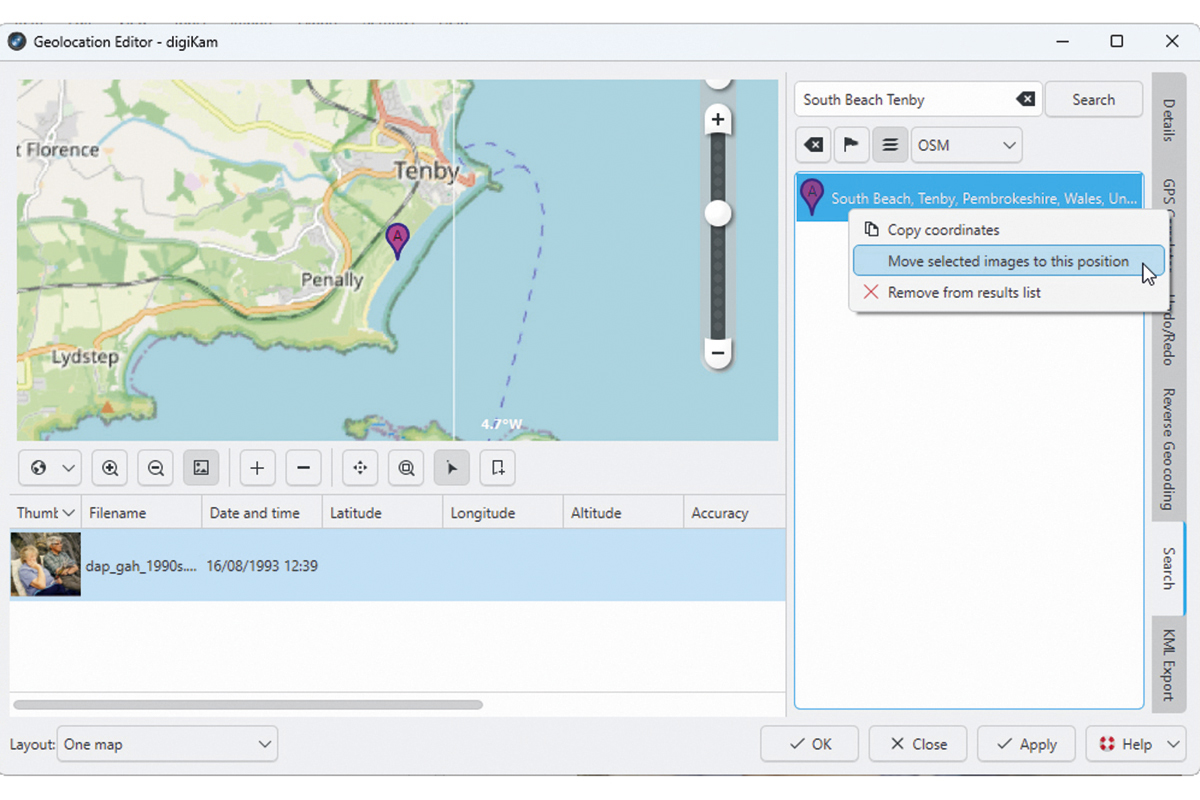
If you know where a photograph was taken, choose ‘Item > Edit GeoLocation’. Select ‘Search’ from the right-hand vertical tabs and enter part or all of the address to start searching. When the correct place is found, right-click it and choose ‘Move selected images to this position’ followed by ‘Apply’ or ‘OK’.
9. Keep exploring
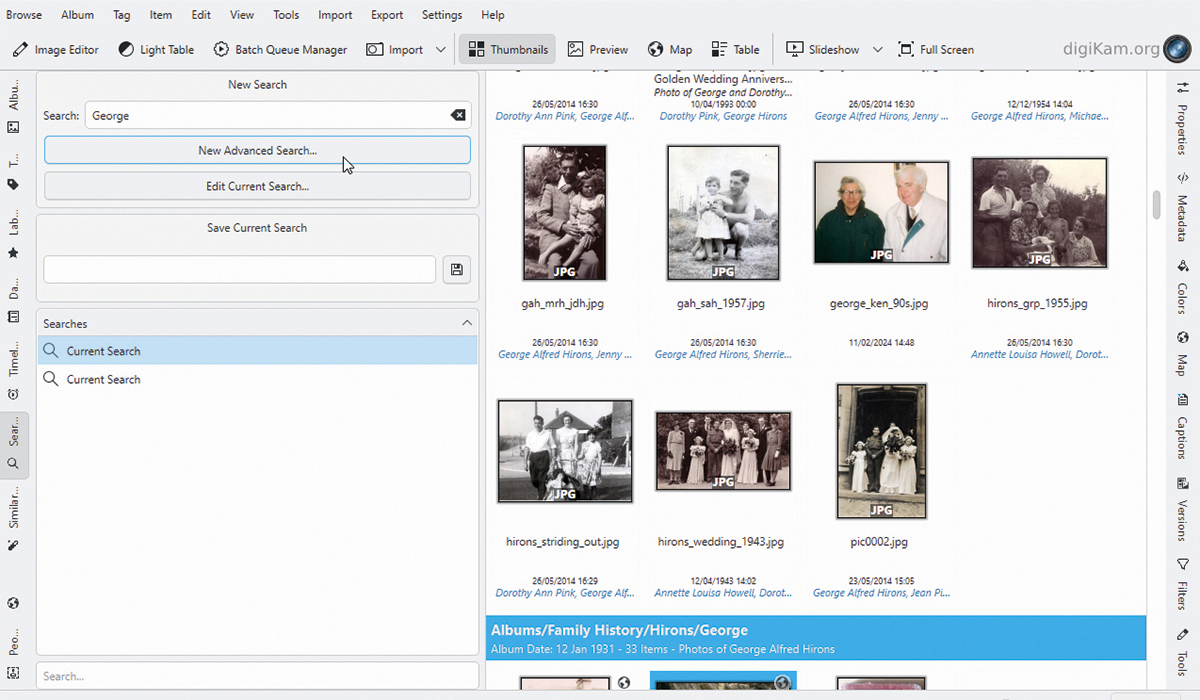
We’ve barely scratched the surface of what digiKam can do – for example, you can use the ‘Search’ tab to quickly find photos by tag, label, place, date or other term, and the ‘Export’ menu to share images online, or experiment with image-editing and gallery-creation tools.


